- Explain how to use vector calculations to move a sprite.
- Code sprite behavior in the updateParameters callback.
- Use notifyController and the onMessagesPolled callback to specify game behavior.
- Demonstrate the use of event-handling, callbacks, and interfaces.
Simulation
An airplane is flying toward the center (0, 0) of the Cartesian grid.
Move the sliders to place the airplane at an (X, Y) starting position:
X = -300 Y = 150
Move the slider to select the airplane's speed:
Speed = 50
Select 'Calculate' to generate the velocity vectors.
Exercises
Exercise 2A_LayeredClouds
Make a scene with three clouds and a sun in overlapping layers.
- Use setBackground() to change the color of the sky to light blue.
- Use the sun sprite, sun-4.png.
- Use setScale() to make the sun big.
- Use the layer parameter when enlisting your Entities.
Read about
setBackground,
setXVelocity,
setActive,
and
setScale.
Exercise 2B_PhantomBalloon
Make a scene in which a mouse listener registers a user's mouse click, making a balloon appear for a short time only.
- Add a mouse listener to your Controller:
public Exercise2B() {
  setTitle("Exercise 2B");
  addMouseListener(this);
  addKeyListener(this);
}@Override
public void mouseReleased(MouseEvent e) {
balloon = new RedBalloon(e.getX(), e.getY());
balloon.setTimeToLive(); // add your parameter here
addEntity(balloon);
balloon.setActive(true);
}Read about MouseListener, .getX, and setTimeToLive.
Exercise 2C_SeekingBalloon
Make a randomly-placed balloon move to the center of the screen using updateParameters and vector dynamics calculations.
- Set the balloon's x and y destination in its constructor.
- Code the vector dynamics calculations in the updateParameters method. Review the simulation calculations for help.
- Set the random x and y position, speed, and scale of the balloon in the enlistEntities method:
@Override
protected void enlistEntities() {
	Random rand = new Random();

	// generate random locations within acceptable range
	x = // use rand here
	y = // use rand here

	balloon = new RedBalloon(x, y, centerX, centerY);
	balloon.setScale();
	balloon.setSpeed();
	balloon.setActive(true);
	addEntity(balloon);
}
Read about
Random,
Math.atan2, and
getXLocation,
and getYLocation.
Exercise 2D_PoppedBalloon
Make the balloon pop when it reaches the center of the screen. Use an Explosion sprite for the pop, and add a sound effect (SoundEffects.POP) when it pops.
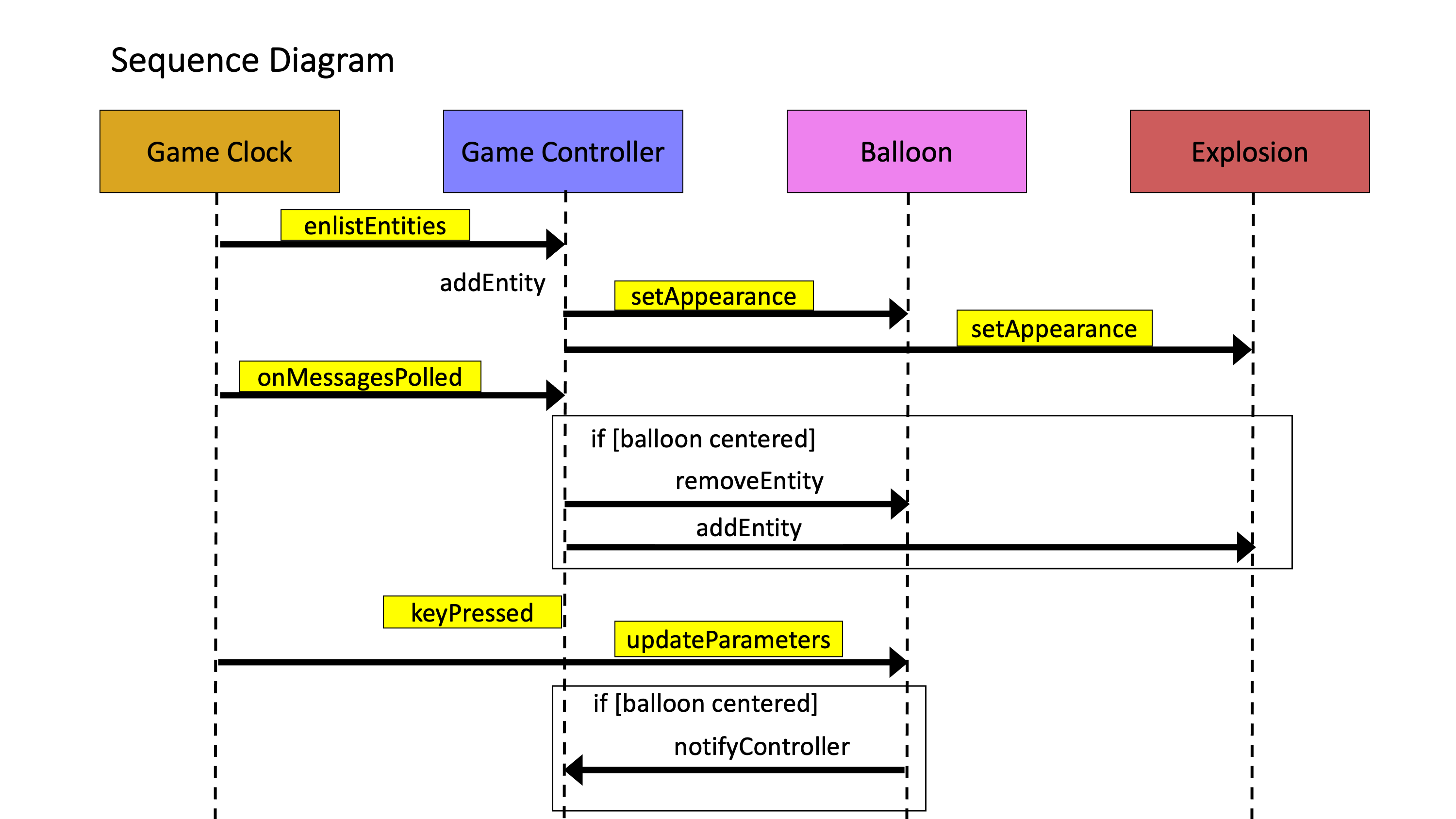
- Call notifyController() when the balloon gets to the center, then code the onMessagesPolled to handle the message from the balloon.
- Here's a sequence diagram:
- Here's an idea of how to code the onMessagesPolled method:
@Override
	protected void onMessagesPolled(MessageEvent[] events) {

		for (MessageEvent me : events) {
			String msg = me.getDescription();
			EntityModel em = me.getSender();
			if (msg.equals("centered") && em instanceof RedBalloon) {

				// make the pop sound here

                // cast the model as a balloon
				RedBalloon balloon = (RedBalloon) em;

				// remove the balloon here

				int x = balloon.getX();
				int y = balloon.getY();
				Explosion exp = new Explosion(x, y, 0);

				// setGhost, setScale, etc. as needed

				addEntity(exp);
			}
		}
	}
Read about
notifyController,
onMessagesPolled,
.getDescription,
.getSender,
SoundEffects,
removeEntity,
and setGhost.
Challenges
Challenge 2E_CookieGame
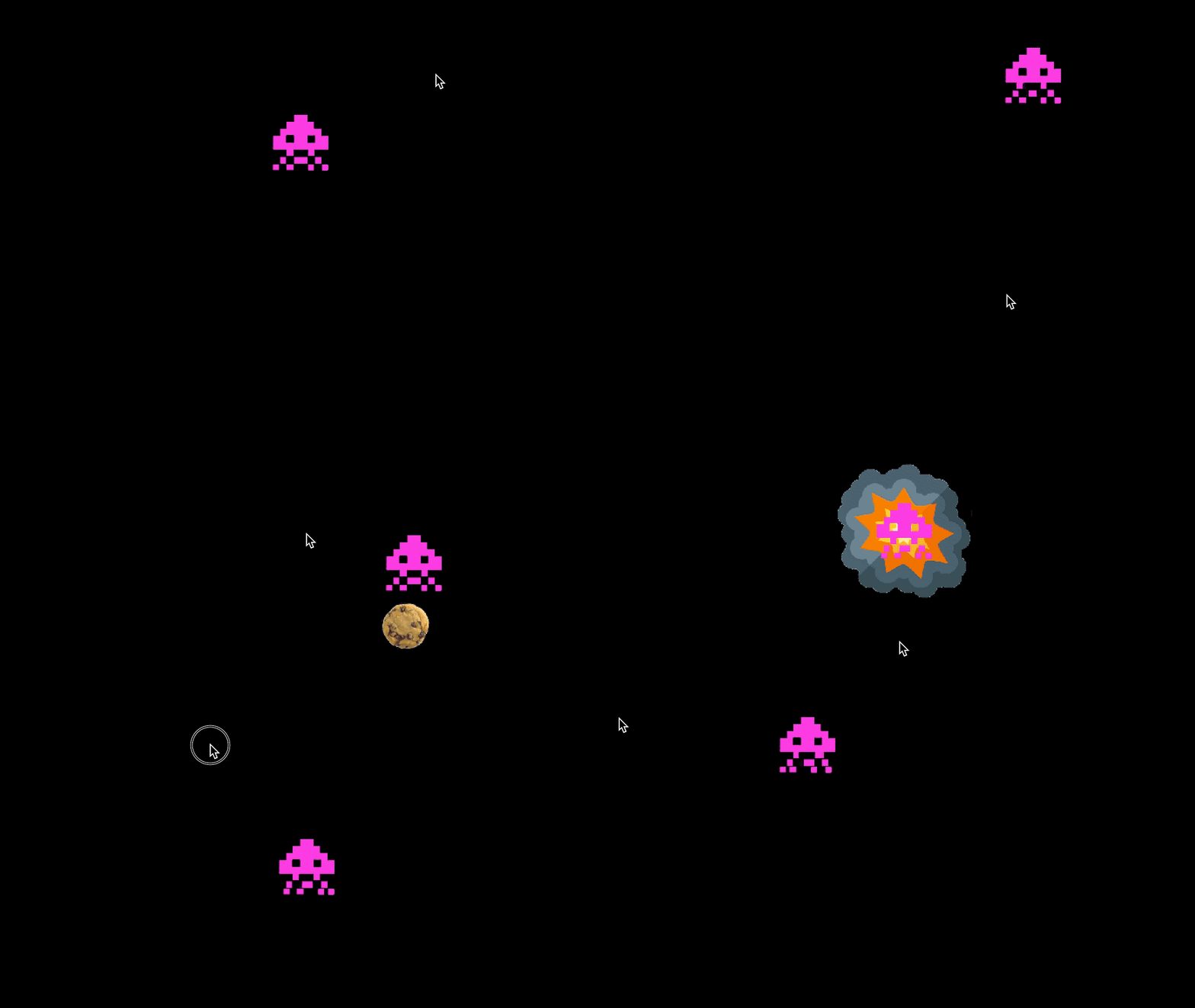
Create a game where a blank display has an alien that pointlessly roams the screen searching for food. You should be able to drop a cookie on the screen by clicking on it. Once a cookie has been placed on the screen, the alien should make a beeline for the cookie and consume it. It should rest for fifteen seconds, content with its meal. After the alien has rested long enough, it should start moving around the screen again, searching for food until the feeding cycle repeats.

Challenge 2F_SequenceDiagram
Draw a sequence diagram of the cookie game. Include lifelines for your Controller, Alien, and Cookie. Draw the method calls for a use case sequence. Use pencil and paper or a software tool like UMLet.